Summer of Copilot Week 4
In Week 4 of my #SummerOfCopilot series on LinkedIn, we explored how AI is becoming embedded in the modern workplace, from the apps we use every day to the depths of our company intranet. If Week 3 was about the promise of Copilot, Week 4 was about putting Copilot to work and seeing results. We discussed:
Copilot Chat as an ever-present AI assistant you can call on in any context.
Real productivity gains witnessed from using Copilot in tasks like email management, document prep, and meetings.
A comparison of Copilot Chat vs. ChatGPT (and other AI) to clarify when and why Copilot is the better fit for enterprises.
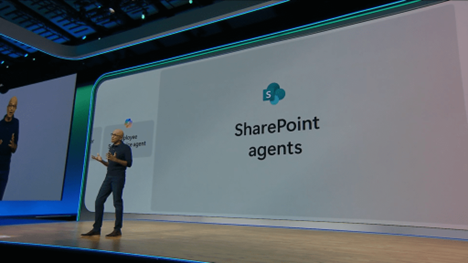
The debut of SharePoint AI Agents, which perhaps stole the spotlight by turning intranets into interactive Q&A bots.
Plus, we shared a trove of complimentary Copilot training resources to help you and your teams get up to speed with these tools.
Let’s dive into the key takeaways from each topic we covered in Week 4, and why they matter for you as a business leader.
Copilot Chat: Your Always-On AI Sidekick
We kicked off the week by spotlighting Copilot Chat – essentially the heart of Microsoft’s Copilot experience. If you have Microsoft 365 apps (and especially if you’re in the early access program for Copilot), Copilot Chat is that little AI sidebar or chat box that you can launch with a click or keystroke in apps like Teams, Outlook, Word, etc.. Microsoft even introduced a dedicated Copilot key on new laptops to make invoking this AI as easy as opening the Start menu.

The big idea: Copilot Chat is integrated with your work context. Unlike going to a separate website for ChatGPT, Copilot is right there in your workflow, and it knows the context of what you’re doing. It’s aware of who you are in the organization, what document you have open, your recent meetings and emails – within the bounds of what you have permission to access. This means when you ask something, you can skip a lot of explanation. For example, if you’re editing a sales proposal, you can simply ask, “Draft a client email summarizing this proposal,” and Copilot will use the content of the document to create the email. Or in Excel: “Create a chart from this data for last quarter by product line,” and it will insert the chart right there. It’s like having a smart assistant looking over your shoulder, ready to help in context.
Microsoft envisions this as “the new front end” for their apps – instead of hunting through menus or typing formulas, you just tell Copilot what you need. In our internal testing, we’ve found ourselves adapting to this pretty quickly. It feels natural to ask an AI to handle a task, especially once you trust that it usually does a solid job. Think of Copilot Chat as an employee who’s extremely fast, fairly knowledgeable, and available 24/7 for any department.
There's an important distinction between Copilot Chat (free with many plans) vs. the $30 add-on Microsoft 365 Copilot. Copilot Chat is what everyone gets in things like Teams and Bing (where it’s called Bing Chat Enterprise). It’s great for general Q&A, brainstorming, writing help, and so on, and it uses web information plus whatever limited organizational data it can access if you have certain licenses. Microsoft 365 Copilot, by contrast, is the full-fledged AI deeply woven into Office apps, with access to all your internal content (files, emails, calendar) through the Microsoft Graph. That’s the one with the extra fee. In practice, if you have M365 Copilot, Copilot Chat becomes much more powerful because it suddenly knows your internal context too. But even without that license, Copilot Chat itself is a productivity booster with web knowledge and your prompts.
Key point for leaders: Having an AI assistant in the flow of work reduces “task switching” and lowers the friction for using AI. Employees don’t have to think about which tool to open or whether they’re allowed to use it – it’s just there. This could lead to widespread adoption, meaning the ROI of Copilot isn’t limited to a few power users; it can become part of everyone’s daily toolkit.
Productivity in Practice: How Copilot Saved Time
Skepticism around AI often centers on, “Is this just hype, or will it actually save time/money?” That’s why we loved sharing real examples from our experience and Microsoft’s early tests showing Copilot’s impact:
Email Triage and Drafting: One of our team members was buried in email after a week off. Copilot Chat summarized a dozen lengthy threads into concise bullet points, highlighting key decisions and action items. In one case, it even drafted a polite response email. This turned what could have been an hour of inbox clearing into a 10-minute review session. The magic moment was seeing a normally overwhelming thread distilled down into a few sentences – that clarity helps you respond faster and with confidence. Microsoft reported similar outcomes: what might take 15–20 minutes to read and write manually can take ~2 minutes with Copilot.
Digesting Long Documents: We tested Copilot on a 30-page market research PDF. Instead of spending an afternoon reading, we asked Copilot for a summary. It generated a clear list of key findings and even extracted a few insightful quotes. Was it as nuanced as a full read? No, but for a high-level brief, it was perfect. It allowed us to identify which sections to dive into deeper. This shows Copilot can serve as an efficient first-pass filter on information.
Content Creation & Polishing: As writers know, the worst draft is the one that never gets written. Copilot removes the “blank page” syndrome by giving you a starting point. We had bullet points for a project update; Copilot expanded them into paragraphs with a logical flow. We then edited that draft, but it’s faster to edit than to create from nothing. Team members have also used Copilot as a sounding board for wording – e.g., “rephrase this paragraph to sound more formal,” which it does in seconds. It’s akin to having a junior copywriter or editor on call.
On-Demand Research: During a client meeting, a question came up: “Have we ever done a similar campaign for a finance industry client?” While one person continued the discussion, another quietly asked Copilot. It searched our past proposals and found a relevant project, providing a brief summary we could mention on the spot. And the Researcher agent can comb through dozens of websites to compile in-depth reports for you in minutes.
Collectively, these examples show Copilot shifts the workload – it takes on the menial aspects of tasks, so your team can focus on the strategic parts. It won’t replace human judgment or creativity (we still reviewed and refined everything it did), but it augments your team’s capabilities. Over a week, those saved minutes turn into hours that can be reinvested into more important work. And perhaps equally important, it reduces the mental drain from boring tasks, which can improve overall morale and energy.
Why Copilot (Not ChatGPT) for Work: Context, Security, Action
Mid-week, we addressed a frequently asked question: “We have ChatGPT (or Google Gemini) for free – why pay for Copilot or use it instead?” The answer boils down to enterprise context and control.
1. It knows your world (securely). ChatGPT is a generalist; ask it anything based on public info, and it will try to answer from its training data. But it has no awareness of your company’s documents, emails, or meetings. Copilot, conversely, lives within your Microsoft 365 environment. So it can, for instance, pull data from an Excel file you have open to answer a question, or incorporate a snippet from yesterday’s Word memo that you wrote – all securely and with permission checks. It’s like the difference between a tourist and a company insider. Copilot is the insider that can actually use your internal knowledge (again, within the scope of what you can access – it won’t violate permissions). For any work-related query, that context is immensely valuable.
2. Data never leaves your control. If you were to copy-paste a sensitive client proposal into ChatGPT to get a summary, that text is now on OpenAI’s servers outside your organization. That’s a big no-no for many companies. Copilot is built on Microsoft’s Azure OpenAI service within the Microsoft 365 security boundary, meaning the data stays in your tenant and isn’t used to train the underlying model. Compliance and privacy are preserved. Additionally, Microsoft’s Copilot has guardrails like DLP (Data Loss Prevention) policies enforced. If you wouldn’t normally be allowed to share a document externally, Copilot will treat it the same way (e.g., it might refuse to incorporate a highly confidential file into an answer for someone who isn’t cleared to see it). ChatGPT by itself has no concept of your corporate policies or who should see what.
3. It can do things for you. Copilot is action-oriented. This is subtle but important. Getting an answer or a draft from an AI is step one; step two is using it. Copilot often skips the need for step two. If it drafts an email, that draft is sitting right in Outlook ready to send. If it helps analyze sales data, it can put the summary in your actual Excel sheet. ChatGPT would give you text you then have to manually transfer or implement. It might seem minor, but over hundreds of uses, that integration saves a lot of clicks and confusion. It also means less copying of potentially sensitive info back and forth – the data stays in the app.
4. Admin oversight and tuning. Microsoft knows companies will demand oversight of AI, so they built an admin suite (Copilot Control) to log usage, manage permissions, and even customize certain behaviors. For example, an admin can turn off Copilot’s ability to code if they don’t want that. Or they can see anonymized logs of what types of queries are being made, to monitor for misuse. No public AI tool gives your IT that level of visibility or control. This makes enterprise AI adoption more palatable to risk management.
In summary, Copilot is purpose-built for work. It’s not that ChatGPT is bad – it’s just not designed for enterprise needs out-of-the-box. We use an analogy: ChatGPT is like a brilliant public library, full of general knowledge. Microsoft Copilot is like your company’s well-trained specialist, who knows your internal files, adheres to company rules, and can actually help you get work done in your office.
SharePoint AI Agents: Your Intranet Just Got Smarter
The highlight of Week 4 was undoubtedly the discussion on SharePoint AI Agents. This is where many readers’ ears perked up, and for good reason: it addresses a long-standing challenge in every organization – how do we get information out of our knowledge bases quickly and easily?
The old way: You have a question about an HR policy, or you need a past project report. You try to navigate the intranet or search with keywords and sift through results, or find the right page and scroll. It takes time, and if you’re new, it’s downright daunting. Many people give up and ask a coworker, or worse, make a decision without the info.
The new way with SharePoint AI Agents: You go to the HR site’s Copilot agent chat box and ask, “What’s our policy on parental leave for fathers?” The AI understands your question, combs through the HR site’s pages and documents, and responds: “According to our HR policy (section 4.2), new fathers are eligible for up to 4 weeks of paid parental leave. Here’s a summary of the process to apply…”. It might even provide a link to the exact policy page. No manual searching, no guessing keywords. Just ask and get answers.
This works because Microsoft has essentially given every SharePoint site its own ChatGPT-like interface grounded in that site’s content. It uses the same AI technology but limits the knowledge to what’s on the site (plus any other content you explicitly add to its scope). The result is like having a subject-matter expert for every domain of knowledge in the company.
We shared our early experiments:
On a project site containing plans and reports, the agent answered project-specific questions like risks and timelines by pulling from the project documents.
On an IT site, common employee questions (AI policy, Teams backgrounds) were answered with excerpts from the official guidelines.
Team members were impressed that the answers came back in seconds and references were cited (so you know it wasn’t making it up – it shows which document or page it used).
The enthusiasm is high, but we also noted best practices:
Keep content updated: If your SharePoint content is outdated or messy, the agent will reflect that. It may give wrong or irrelevant answers if the source info is wrong or hard to parse. This is a great opportunity (and motivator) to improve your documentation. The AI essentially holds up a mirror to your content quality.
One site at a time: Agents work best when their scope is well-defined (e.g., a specific site or a set of related documents). While an enterprise-wide “ask anything” is the dream, scoping by site ensures answers are precise and contextually correct. Users will learn which agent to ask for what (just like they know which site to search for which info).
Permissions are enforced: If you don’t have access to a file, the agent won’t reveal its contents. We tested this – a marketing site’s agent wouldn’t share info from a draft document until permissions were adjusted. This is critical for trust; people can use the system without fear of leaks.
Encourage usage and gather feedback: The more questions asked, the better you’ll understand what people are looking for. It might highlight gaps (“we can’t find an answer because maybe it’s not documented anywhere!”). Also, initial skepticism (“is this going to work?") can be overcome by demonstration. Show some example queries and answers to employees to build confidence.
For a business leader, the emergence of intranet AI agents means your investments in knowledge could finally pay off. Adoption of intranet resources might increase because it’s no longer a painful search exercise, but a simple Q&A. New employees ramp up faster. Seasoned employees spend less time digging for info and more time acting on it. And your internal support teams (HR, IT, etc.) can scale better – employees might get their answers from the AI agent instead of raising a ticket or pinging support for routine questions.
We think this trend – of agentic AI within enterprises – is just beginning. (In fact, Gartner recently talked about “Agentic AI” as a major trend, essentially AI that can act autonomously for specific tasks – something Copilot and these agents are early examples of.) The bottom line is, the tools to implement this are available now in the Microsoft ecosystem. If you’re in a position to do so, we recommend piloting a SharePoint AI agent on a non-sensitive, high-value knowledge base (for example, an IT help FAQ site or a sales enablement repository). Evaluate the results and iterate.
Complimentary Copilot Training Resources
To wrap up Week 4, we didn’t want to just tell you about Copilot – we want you to try it! Upskilling your team on how to use AI tools is crucial. Thankfully, Microsoft and partners offer training to help users get familiar with Copilot capabilities.

Work Smarter with Copilot – (Microsoft Learn) A great starting point that shows how to use Copilot across everyday apps to research, draft, and generate content more efficiently aka.synozur.com/CP101
Get Started with Microsoft 365 Copilot – Introduces using Copilot inside Word, Excel, Outlook, PowerPoint, and Teams. Perfect for showing your workforce concrete examples of streamlining workflows (like generating PowerPoint slides from a Word doc, or summarizing Teams meetings). aka.synozur.com/CP102
Create Agents in Microsoft Copilot Studio – A more advanced course on building custom AI chatbots (agents) with low-code tools. If you’re intrigued by the idea of customizing Copilot for specific processes (perhaps as we discussed with SharePoint agents or other use cases), this gives a roadmap. aka.synozur.com/CP103
Copilot for Power Platform (Power Apps & Power Automate) – Shows how to use Copilot within the Power Platform to rapidly develop apps and workflows using natural language. This is great for your developers or technically inclined staff to accelerate solution-building. aka.synozur.com/CP104
Power Platform Solutions with AI – Explores integrating GPT-powered Copilot features in automations and apps. aka.synozur.com/CP105
GitHub Copilot Fundamentals (Parts 1 & 2) – If your organization does software development, these courses cover GitHub Copilot for AI pair-programming. They teach how to effectively use Copilot to write code, tests, and even understand code – a boon for developers. aka.synozur.com/CP106 and aka.synozur.com/CP107
30-Day AI Productivity Journey – A structured daily learning path to become a “Copilot power user” in one month. This could be a fun team challenge or pilot program for early adopters. aka.synozur.com/CP108
Getting Started with Microsoft Copilot (Video) – A 2-hour video course co-produced with Microsoft, covering setup and usage of M365 Copilot across apps. Good for visual learners. aka.synozur.com/CP109
Microsoft Copilot Academy – A learning path available via Microsoft Viva Learning, aimed at organizations to skill up employees on Copilot in a structured way. aka.synozur.com/CPAcademy
(For convenience, we compiled all these at www.synozur.com/AI-training, so you can bookmark one page.)
Closing Thoughts
Week 4 was all about making Copilot real in everyday work. We move from theory to practice: showing that yes, AI can draft that email, yes, it can find that file, yes, it can answer that policy question – and do it quickly and correctly (most of the time). There’s still growth and learning involved; we’re all figuring out the best ways to interact with these AI tools and where the boundaries are. But the potential is tremendous.
For business leaders, the takeaway is to lean into these changes. Identify quick wins where Copilot or AI agents can relieve pain points (email overload, onboarding FAQs, report generation, etc.). Pilot them, gather feedback, and iterate. Ensure your data governance is strong (Microsoft has given you tools like Purview and SAM for that in this ecosystem). And crucially, enable your people through awareness and training. The organizations that adapt fastest will see the biggest gains, whether it’s faster decision cycles, better customer responses, or happier employees who are less bogged down by drudgery.
Next up, in Week 5, we’ll look at Copilot Studio (how you can create custom copilots and tailor them to your processes) and the Copilot Control System (the admin side of managing this AI revolution). These topics are about extending and governing the capabilities we’ve seen so far. If Week 4 was “use what’s available,” Week 5 is “make it your own and keep it in check.” Stay tuned for that, and as always, share your questions and experiences – we’re excited to hear how you are using Copilot in your organization.
Together, we’re learning how to navigate this new era of AI-powered work and leadership. Here’s to working smarter, not harder! 🚀