Seven Modest Proposals to Enhance Copilot
This week (Week 7 of our #SummerOfCopilot series), we explore seven modest proposals – from unifying Copilot chats across all your apps to giving every employee the power to create a custom AI helper – that could supercharge Copilot and transform the way you work.

Here's what I'm suggesting:
Unified Copilot Chat History
Simplified Prompt Templates and Placeholders
Intelligent Meeting Scheduler Agent
Interactive Podcast Summaries
Shareable Copilot Notebooks
On Brand Templates and Outputs
No Code Custom Copilot App Agents
I’ll also have a new episode of our Polaris podcast to explore these proposal in a convenient audio format, coming the week of July 21.Our #SummerOfCopilot series has been exploring Copilot, day by day, for the past seven weeks on LinkedIn. I’m also recapping and analyzing our daily posts in my weekly Copilot Navigator newsletter, with a deeper dive here in the Insights blog.
Here’s where we stand:
#SummerOfCopilot Week 7
Week 1: Microsoft Copilot – A Bold Vision for AI Transformation - #SummerOfCopilot
Week 2: AI Co-Workers Arrive: A Week with Microsoft’s Researcher & Analyst Agents
Week 3: Making the Invisible Visible: Tacit Knowledge Meets Copilot
Week 4: Unlocking Productivity: Copilot, ChatGPT, and AI Agents in Action – plus Copilot training resources
Week 5: From Studio to Control: Building Smarter, Safer Workplaces with Microsoft Copilot
Week 6: AI in Action: How New Copilot Features are Changing Content Management and Productivity [Roadmap Recap]
Our next few posts:
Week 8: Copilot for Leadership Part 1 (CEO, Boards of Directors, CFO, CMO, CRO)
Week 9: Copilot for Leadership Part 2 (CHRO, COO, CIO, CDO, CAIO and CISO)
After that we’re planning to look at real world case studies. Today, let's start with ideas to make Copilot even better.
Unified Copilot Chat Across Apps
The idea: You’re chatting with Copilot in Teams about a project plan, then you hop into Word to draft a document. Wouldn’t it be great if Copilot already knew everything you discussed in Teams, without you having to repeat yourself? Unified Copilot Chat means your Copilot conversation would persist across Outlook, Teams, Word, Excel – essentially any Microsoft 365 app you use. Today, each of those Copilot instances operates in a silo, with no shared memory of your interactions. Unified chat would change that: you could have one continuous conversation with Copilot as you move through your work day.
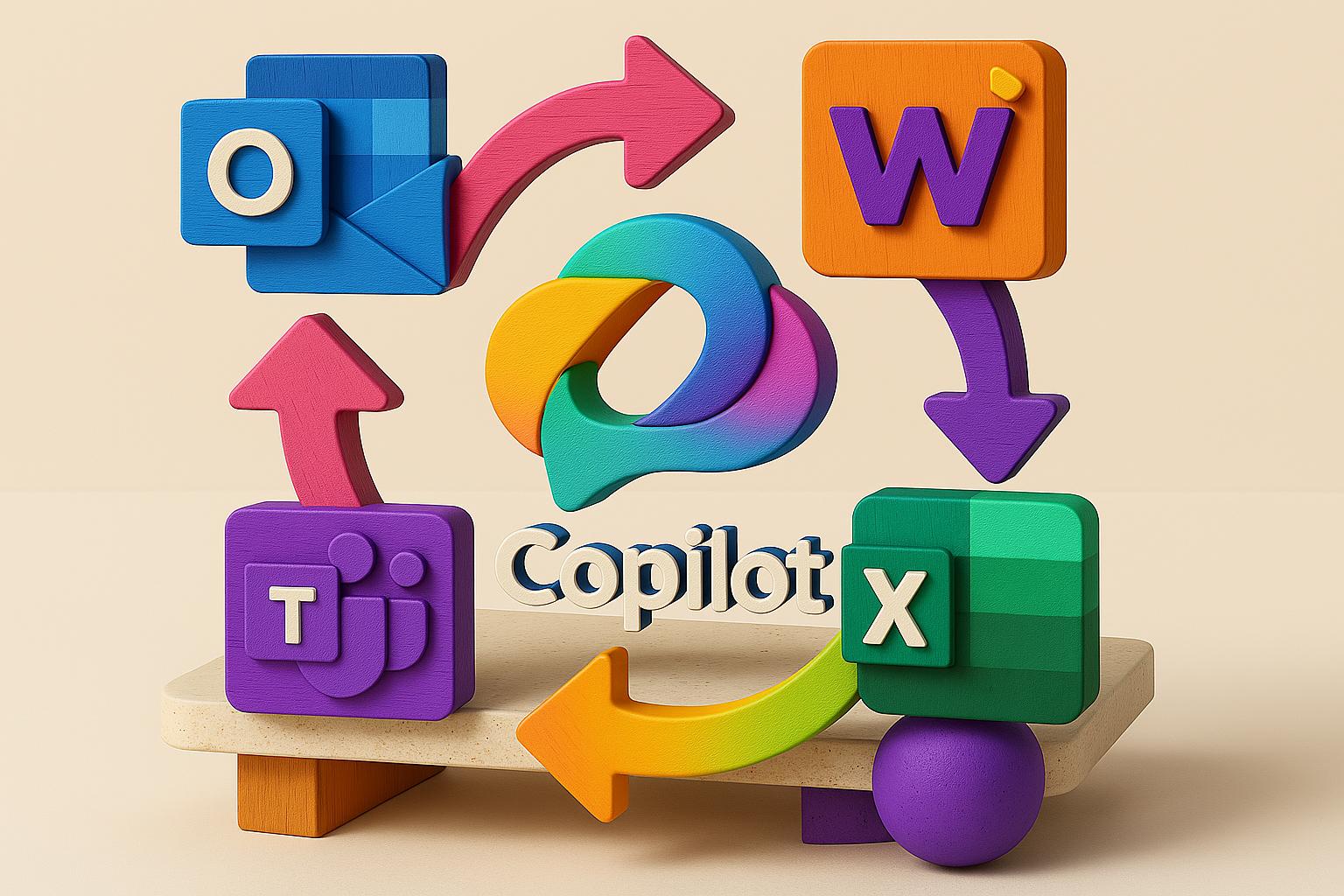
Why it matters: This would make Copilot feel like a true personal assistant rather than a bunch of separate bots. For example, you could brainstorm ideas with Copilot in a Teams chat, then say “Hey, can you put that into a PowerPoint?” when you switch to PowerPoint – without starting from scratch. No more re-uploading the same file or context in each app. It’s a huge time-saver and reduces frustration. It also lowers the barrier to using Copilot in different apps, because you know it “already gets the context.” In effect, you’d have one Copilot brain following you through multiple applications.
Is it feasible? Microsoft seems to be heading this direction. The new Copilot chat interface in Office apps already shows a history of your past questions within that app – an early step toward remembering context. And Microsoft has hinted at a more unified Business Chat experience on the horizon that could connect those dots. It won’t surprise me if soon we can hand off a conversation from Outlook to Teams to Excel with Copilot seamlessly. It’s a logical evolution: our work doesn’t happen in one application at a time, and neither should our AI assistant.
Simplified Prompt Templates & Input Placeholders – Making Complex Prompts Easy
The idea: If you’ve ever written a long prompt for Copilot (“Draft a quarterly report about X project covering A, B, and C, in tone Y…”), you know it can be like writing mini code. Prompt templates would simplify this by providing a form-like interface for common requests. Think of it like Mad Libs for AI: the template has blanks or dropdowns (e.g., “Project Name”, “Quarter” “Include graphs? Yes/No”). You just fill in the fields, and Copilot constructs the prompt and generates the output. This ensures you don’t forget any key info and helps avoid errors like leaving a placeholder in your text.
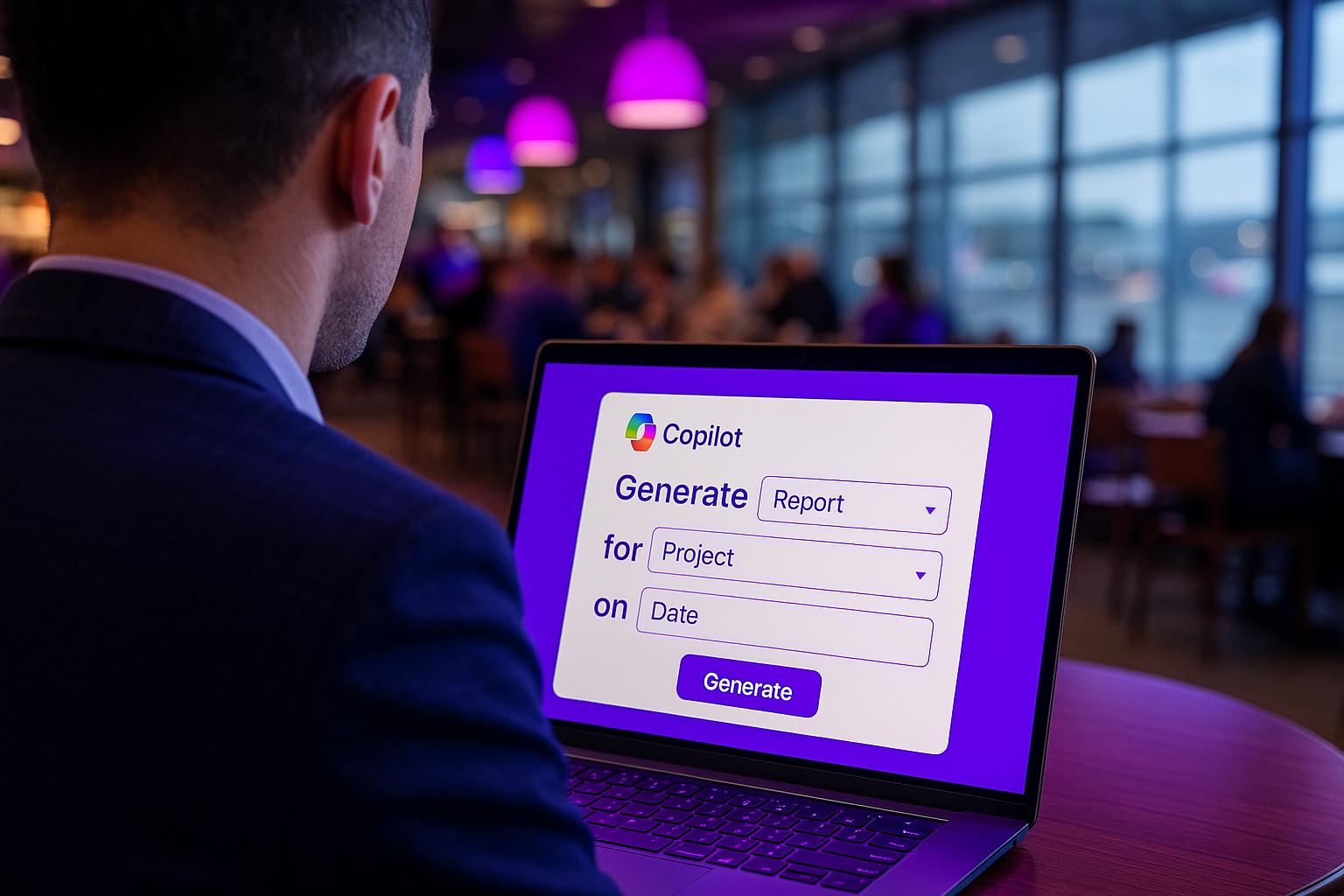
Why it matters: Not everyone is an “AI whisperer” comfortable with crafting prompts from scratch. Templates would make Copilot more approachable to the average user. They’d also enforce consistency. For instance, your team could have a “Client Proposal” template prompt that everyone uses, so proposals have a uniform structure and cover all necessary points. Experienced users benefit too – it saves time to not type out the same boilerplate each time. You get faster, more reliable results with less effort.
The proof of concept: Microsoft has some precedent here. They created a Prompt Gallery last year that collected example prompts (and even let users save/share prompts). And in the Power Platform’s AI Builder, when you design an AI model, you can set up input fields for the prompts that business users will fill in later. In other words, the concept of parameterized prompts exists; it just hasn’t made its way into the Copilot consumer interface yet. Bringing it into Copilot would bridge the gap between AI power users and everyone else. Imagine a library of prompt templates in Copilot – you could pick “Quarterly Sales Summary” and just fill in product name and date range. It lowers the learning curve and helps organizations capture prompt best practices for reuse.
Bonus: This could tie in nicely with Copilot Memory as well. If Copilot knows your common projects or terminology (thanks to Memory), it could even auto-fill some of those template fields for you. For example, if you often run reports for Project Alpha, the template might suggest “Project Alpha” as a default. Little touches like that would make the experience even more seamless.
Intelligent Meeting Scheduler – Automate the Calendar Juggle
The idea: You’ve probably experienced the email threads that go “Can you meet Monday at 10? No? How about Tuesday afternoon?” back and forth, ad nauseam. An AI Meeting Scheduler built into Copilot would end that. You’d tell Copilot the basics (“schedule a 60-minute marketing sync next week with Alice, Bob, and Carol”) and it would handle the rest. It could look at everyone’s Outlook calendars, suggest an optimal time (e.g., “How about Wednesday at 3 PM when all three are free?”), and even propose a time that’s outside someone’s working hours if needed, with a note like “Carol is in a different time zone, this slot is 8 AM her time – is that okay?” Once you confirm, it sends the invite, books the meeting room or Teams link, and voila.
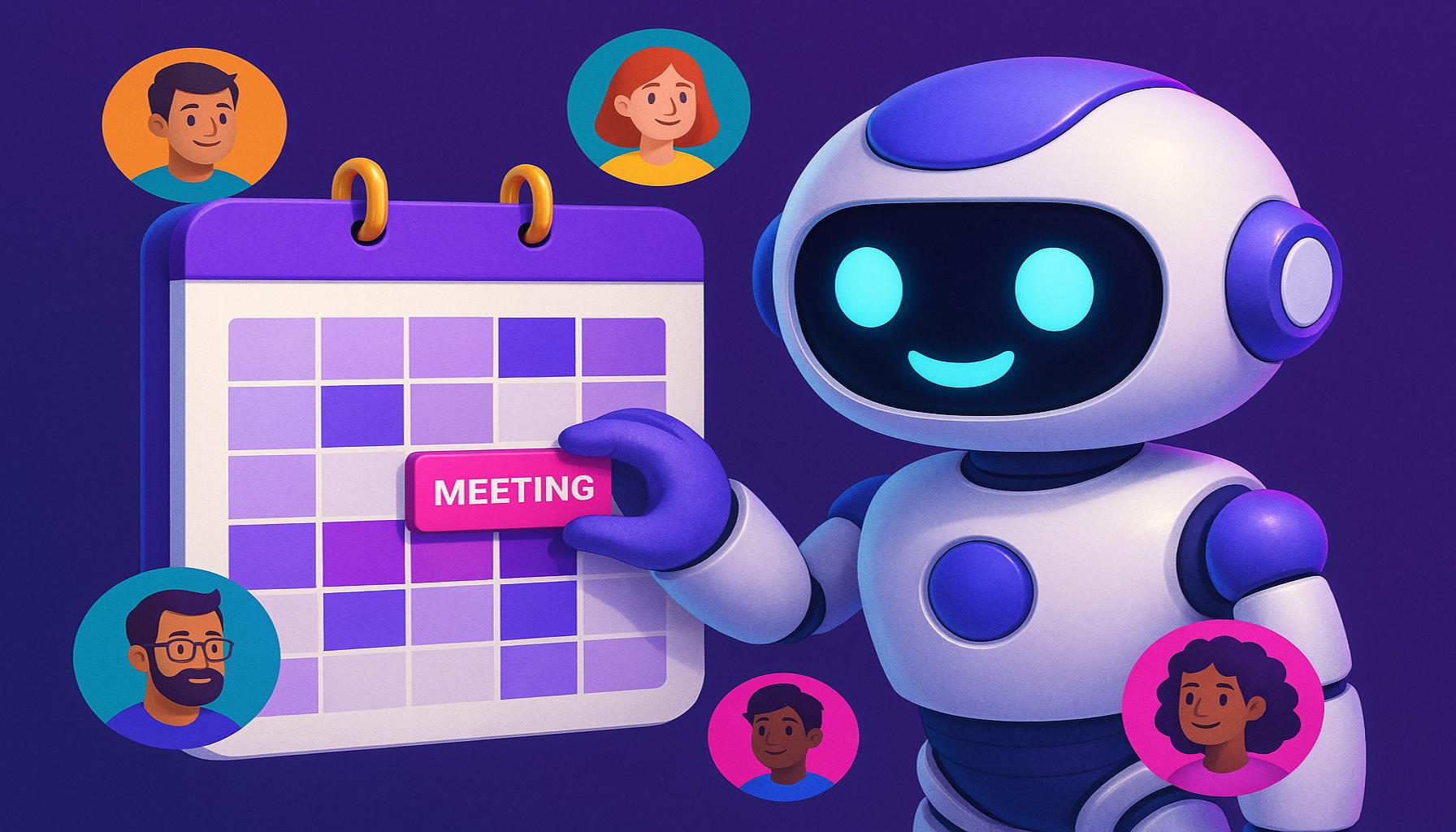
Why it matters: This could save a ton of time and eliminate a common source of friction. Many professionals spend a few hours every week just organizing meetings. Take that off their plate, and they can spend those hours on actual work. It also means fewer errors – an AI scheduler won’t forget to invite someone important or fail to add the video call details. And it can optimize: maybe it notices that moving your usual 1:1 with your colleague by 30 minutes would allow this whole team meeting to fit in sooner, and suggests that change (with your approval). That kind of holistic view of your calendar is something humans often don’t have the patience for, but an AI can manage easily.
Past attempts and third-party tools: Interesting fact – Microsoft basically built this in the past. A service called Calendar.help (under Cortana) used an AI assistant that would email participants to find a meeting time for you. More recently, an Outlook add-in simply called “Scheduler” let you CC an AI email address in your meeting requests to handle scheduling automatically. Those projects showed there’s real demand (users who tried it, loved it). Outside of Microsoft, tools like x.ai (Amy the AI scheduler) and Calendly (while not AI, it automates availability sharing) have been popular – indicating that professionals want help with scheduling. By bringing a smart scheduler into Copilot, Microsoft would integrate this capability directly into the flow of work. You could be chatting in Teams and just say, “schedule a follow-up meeting,” and Copilot handles it in the background. No separate apps or bots needed.
Looking ahead: It’s easy to see Microsoft integrating scheduling intelligence into the Copilot that lives in Outlook or Microsoft Teams. The building blocks (Graph calendar data, availability APIs) are already there. One challenge is making the AI negotiate politely – but given natural language tech, Copilot could even email folks on your behalf with something like, “Chris’s assistant here – trying to schedule a meeting, how does next week look for you?” That might freak people out today, but within a year it could feel normal to have an AI reaching out to coordinate meetings. When that happens, “calendar Tetris” will be a thing of the past for many of us.
Interactive AI Briefings – Your Personal “Podcast” of Work Content
The idea: There’s a PDF report you need to read before a meeting, but you’re short on time. What if Copilot could give you an audio summary of it while you drive home – and you could ask it questions, like you would if a colleague was briefing you? This is the vision of interactive AI summaries, which I like to call the “Copilot podcast” concept. Copilot would synthesize your documents, emails, or meeting notes into an easy-to-listen narrative, often with a bit of dynamic flair (perhaps two AI voices discussing the content to make it livelier). And critically, it wouldn’t be a one-way street – you could pause and ask follow-up questions by voice: “Can you clarify that last point?” or “Who’s responsible for that task you mentioned?” The AI would answer, then resume the summary.

Current status: Microsoft has begun exploring this via Copilot Notebook features in Office. For example, Word’s Copilot can now read a document out loud to you and listen for voice commands (currently in testing). It’s already impersonating a podcast-like style by having a conversational tone. Google is trying something related too: their NotebookLM project is all about conversing with an AI about your documents – including potentially by voice. So, the pieces are falling into place for this to become reality.
Why it matters: This could revolutionize how we consume information. Instead of carving out time to read through a 30-page document or a long email thread, you could leverage otherwise “dead” time (commute, exercising, etc.) by listening to the AI’s summary. It’s hands-free and eyes-free. For busy executives who might normally ask an assistant to summarize papers, Copilot can fill that role anytime. And the interactive element is key – unlike an audiobook, you’re not stuck if you get confused or want more detail on something. You just ask, and the AI elaborates or clarifies, then continues. This keeps you engaged and in control of the briefing.
Collaboration angle: Now, imagine these AI-generated briefings aren’t just for you. You could share them with your team. Suppose Copilot creates a 5-minute audio rundown of a project status report; you could post that in Teams for anyone who prefers listening over reading the full report. It adds a new modality to workplace communication. Some people absorb info better by hearing it – this caters to them. It’s also an accessibility win for those who may have visual impairments or reading difficulties. By making Copilot’s outputs shareable in audio form, knowledge can spread more flexibly.
The bottom line: An interactive “Copilot podcast” for your business content means no more wasted time. Your commute or workout can double as a briefing session. And since you can talk with Copilot during it, you’re never missing the chance to drill down on details. It’s like having a knowledgeable colleague summarize and discuss the highlights with you, whenever you need, on-demand.
Shared Copilot Notebooks – Team Loops and Shared AI Notes
The idea: While discussing interactive summaries, it’s natural to extend into how Copilot could better support team collaboration. Today, Copilot is mostly a personal tool – it works with your data and your commands. But a much-requested feature is the ability to have shared Copilot notebooks where teams can collectively build on AI-generated content. Imagine a shared project notebook where Copilot’s outputs (summaries, drafts, action items) are saved and visible to everyone on the team. It would include the source documents, the prompts asked, and the AI’s answers – a living knowledge base for that project.

Why it matters: Teams often tackle large documents or knowledge bases together. If one person asks Copilot to summarize a client’s 100-page requirements document, that summary could be useful to others. Instead of each team member individually prompting the AI (and perhaps getting slightly different answers), one person could do it and save the result for all. It makes AI-generated insights more like a shared asset. It also adds transparency: team members can see what question was asked and how Copilot answered, which builds trust and alignment (no one wonders “Hey, where did that info come from?”).
Technology considerations: Microsoft Loop is an existing tool aiming to share live blocks of content across Office apps. A Copilot shared notebook could leverage Loop components – for instance, an AI-generated task list from a meeting could live on a Loop page that everyone in the meeting’s team can access and edit. Security is crucial, of course: such shared AI notes should respect permissions (if one answer came from a document only certain people can see, others shouldn’t see that content). Microsoft’s strength in access controls would be important here. But assuming those hurdles are handled, this feature would turn Copilot into not just your personal helper, but a collaborative team assistant. You could drop a question into a shared Copilot chat for the team, and anyone can see the response and follow up.
In practice: Think of a scenario: your team is preparing for a big client pitch. You create a shared Copilot notebook for the pitch. In it, you ask Copilot to research the client from internal documents and summarize their priorities. You also prompt it to draft an outline of the proposal. Your colleague later opens the notebook, sees those outputs, and can ask Copilot, “Expand the section about their budget constraints.” The answer appears for both of you to refine further. By the end, you have a set of AI-generated notes, drafts, and Q&As that your whole team contributed to and benefited from. That’s powerful – it’s like adding an AI collaborator into the team space, not just individual desktops.
On-Brand Outputs by Default
The idea: Anyone who’s used Copilot (or any AI writer) at work has probably had to tweak the output to fit their company’s style guide. Maybe the font was wrong, the tone too casual, or the slide didn’t include the company logo. The idea of on-brand Copilot outputs is to bake your organization’s standards into Copilot from the start. Basically, Copilot would know your approved templates, fonts, color schemes, and even messaging guidelines, and apply them automatically.
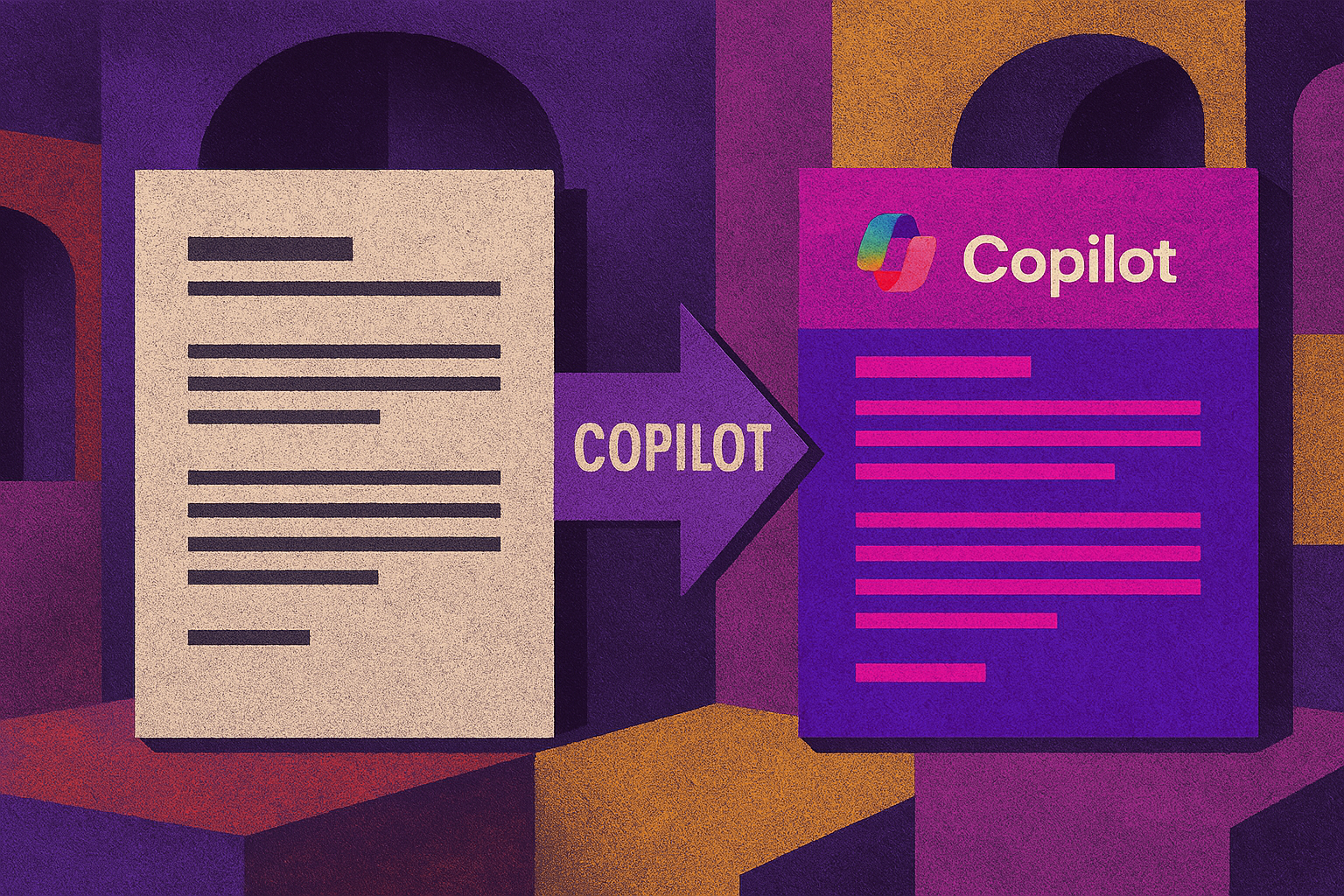
What would this look like? If you ask Copilot for a PowerPoint on Q2 financials, it would produce the deck in your company’s PowerPoint template – correct title slide, brand colors on the charts, logo placed appropriately, etc. If you have a Word template for reports, Copilot would use it. Need to draft an email to a client? Copilot would write it in the tone you’ve defined (say, “friendly and helpful, but not too casual”) and include your standard email signature or disclaimer text.
Why it matters: Consistency and professionalism. For customer-facing content, brand consistency builds trust. Internally, it saves time – employees aren’t spending that extra 30 minutes fixing formatting or wording. It also reduces the chance of an embarrassing mistake, like using an old logo or the wrong legal wording. Newer employees especially would benefit, since Copilot would help them follow company standards they might not be fully familiar with. In regulated industries, this is even more critical: imagine Copilot always including the mandated compliance language in a financial report draft. That’s not just nice-to-have; it might be legally required.
How it could work: Microsoft is already hinting at solutions. Microsoft 365 Copilot is said to tap into your Organizational Assets (like SharePoint libraries of official images or templates). There’s talk of a brand kit feature – in fact, in the new Microsoft Designer (now part of the Copilot ecosystem as the “Create” app), you can set up a Brand Kit with your logos, colors, and fonts. Extending that concept, we’d have a “Copilot Corporate Style Guide” that an admin or marketing team configures. It might include writing guidelines (“use ‘our customers’ instead of ‘the customers’”, for example) and templates for each type of document. Then, whenever anyone in the company uses Copilot, it references those guidelines. The user doesn’t have to invoke anything special – it’s the default behavior.
We’ve already seen early versions: some Copilot Insider testers noticed that if they had a corporate theme in PowerPoint, Copilot’s generated slides came out in that theme. That’s a promising start. Now imagine the same in Word and Outlook. Microsoft is likely working on it because it’s a top request from businesses.
Beyond aesthetics: On-brand output isn’t just about visuals. It can include content structure. If your company has a standard way to respond to RFPs or a set format for meeting minutes, Copilot should adhere to that. For example, if every project update memo must start with an “Executive Summary” section, an on-brand Copilot would always include that section when drafting a project update. Essentially, it’s about aligning with both the style and substance that your organization expects.
The benefit: From a leader’s perspective, you get to harness Copilot’s speed without sacrificing quality or consistency. Teams won’t need to choose between quick drafts and properly formatted drafts – they’ll get both. This also helps in cross-team communications; if everyone’s using the same Copilot-enforced templates, the outputs become more uniform and predictable, which can streamline how information is consumed across the org. Long term, it means the AI output can be trusted to go out to clients with minimal oversight, because you know it’s following the rules. That’s likely a prerequisite for many companies to deploy AI widely – they need to trust it won’t go off-script.
No-Code Custom Copilot Agents
The idea: Up to now, extending Copilot’s abilities (like integrating it with other data sources or workflows) has been the domain of developers. But what if creating a custom Copilot agent was as easy as recording an Excel macro or building a PowerPoint deck? This concept is all about democratizing AI customization – enabling non-programmers to create their own AI tools. Think of each team or department having the ability to “spin up” a Copilot that’s tailored to their needs.

How it could work: Ideally, through a simple interface directly in apps like Outlook or Excel. You might have a wizard that asks, “What do you want your Copilot to do?” Then you could provide examples or connect it to certain files. Imagine being in Outlook and asking Copilot to watch for an incoming Excel file from your supplier, and when it happens, extracting an inventory value and ;laert them time. It's like classic macros.
Under the hood, it creates a custom prompt pattern or small program for Copilot. To the user, it feels like configuring some settings and hitting Save.
Real examples: Microsoft’s Copilot Studio is a more sophisticated tool that lets developers add “plugins” or connectors to Copilot and define interactions. The no-code future would simplify that dramatically, maybe leveraging natural language: “Copilot, learn how to do X...” and it could attempt to generalize X into a capability. We’re not there yet, but we see analogies in products like Power Automate (which lets non-coders automate workflows with a visual interface) or even older things like Excel macros or Outlook Rules (non-programmers setting up if-this-then-that behaviors).
Why it matters: This could unleash productivity inside companies. The people who best understand a process are usually the ones doing that process every day, not the IT folks. If those people had a way to customize Copilot for their needs, we’d get a lot of niche but impactful AI solutions. Without no-code tools, that idea might never be built because it’s not general enough for Microsoft to develop and the company’s IT team has bigger fish to fry. But give the power to the people on the front lines, and you get these citizen developer AI solutions popping up.
Governance: That brings us to the flip side: you’d want some controls. Not every “homebrew” Copilot will be well-built or safe. IT or center-of-excellence teams would likely need ways to monitor, bless, or curate these custom agents. Maybe there’s an internal marketplace of Copilot add-ons, and some get officially approved for wide use. Others might stay personal. And you’d need a way to retire ones that are no longer used to avoid clutter or confusion (“Which Copilot am I even talking to right now?” issues). All of that is solvable with the right approach (Microsoft could draw on their experience with Power Apps governance here).
The big picture: Allowing no-code Copilot creation means AI stops being a one-size-fits-all service and becomes a platform for innovation. Every department could have its own AI “colleague” specialized in their lingo and tasks, created by that department. This scales out the impact of Copilot massively. It also drives adoption – people are more likely to use a tool they had a hand in creating or tailoring. For business leaders, it’s intriguing because it could lead to efficiency gains or new solutions without always needing budget for software development. The caveat is you must invest in proper training and governance to make sure this freedom doesn’t create chaos. But if done right, the competitive advantages of an organization full of custom AIs could be significant.
Conclusion
The seven ideas above – while ambitious – are not science fiction. They’re natural extensions of what Microsoft 365 Copilot can do today. In fact, as we noted, some are already in motion: Copilot Memory (personalization) is rolling out, and Windows 11’s Copilot Vision (full-desktop context) is being tested with Insiders. Microsoft’s roadmap and recent announcements suggest that they’re listening to users and iterating fast.
For business leaders, this is a call to action: start thinking now about how these AI capabilities can fit into your strategy. Each new Copilot feature has the potential to remove a pain point or unlock a productivity boost for your teams – whether it’s saving time, improving quality, or empowering innovation from within.
We’re living through a period of rapid evolution in workplace AI. Six months ago, many of these features were just wish list items in a LinkedIn post series (hello 👋), and now some are becoming reality. It’s not hard to imagine that by the end of this year, we might be using a unified Copilot chat on our devices, or letting Copilot schedule our meetings, or enjoying auto-formatted, on-brand reports drafted by AI.
Next week, we’ll start looking at how Copilot can transform leadership roles – starting with the CEO and Board of Directors. Let’s continue imagining and building the future of collaborative AI at work – a future where you and your Copilot truly work hand-in-hand. Thanks.